
In this article
LOCALTR / JOURNAL
Before sharing a localhost demo with a client
A working link is only one part of a live demo. Plan the data, access controls, network checks and shutdown together.
Source review: . The article, linked guides and relevant app sources were reviewed. This does not establish Mac installation, live tunnel or native Replay acceptance.
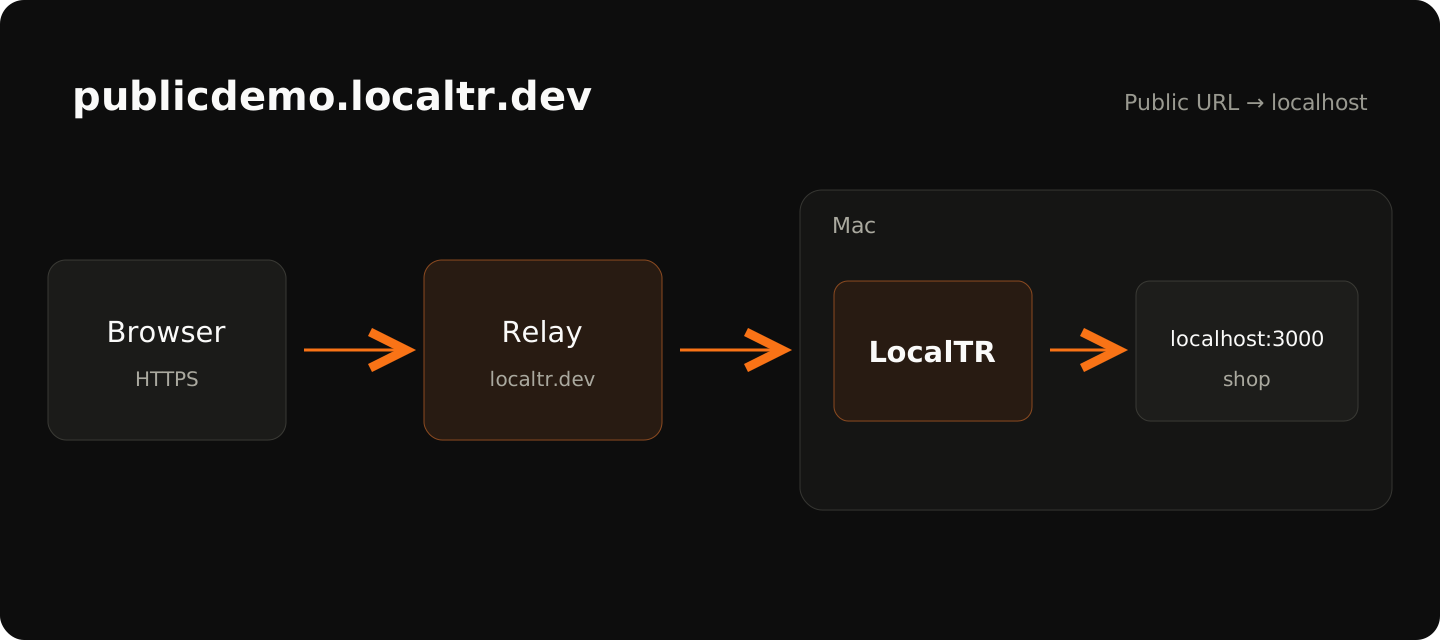
Letting a client try a screen in their own browser produces different feedback from sending a screenshot. Exposing localhost through a public link also makes a running development app reachable from the internet. Good demo preparation begins before copying the address and continues after the meeting finishes.
Separate the demo from production data
Use sample customers, products and orders. Even if the admin page shows no real personal information, API responses, error pages and other endpoints called by the browser may carry it. Check the application's test mode and the sandbox state of connected services. A button that sends a real email can still send a real email during a demo.
LocalTR does not upload and host your source code as a static package. A public HTTP request travels through the relay to your Mac, and the application's response travels back to the visitor. “My code is not uploaded” does not mean “no data passes through a server.” What gets exposed depends on your application as well as the link.
Verify the address from another network
First confirm the local service responds at its direct port. Then create the public URL and open it outside your own Wi-Fi network. A mobile connection can serve as that check. Test the correct page, assets and basic form behavior. Exercise the routes needed during the meeting: a successful home page does not verify the entire workflow.
There is one simultaneous public tunnel per Mac. Opening a public URL for another project replaces the current client. Account for that before opening another connection during a meeting. A chosen subdomain depends on server validation and availability; it is not support for attaching a domain you purchased.
Test access controls
If a password is appropriate, enable Basic Auth and try incorrect credentials in a fresh browser session. Then open the link with the correct credentials. Change the assumption that anyone who knows the URL can access it deliberately. A link password still does not replace your application's own user roles or authorization.
If a webhook or external service uses the same URL, check password behavior with that client. Not every client can send Basic Auth. A difficult-to-guess subdomain is not authentication either. Choosing a useful control requires understanding how the other party will connect.
Treat the Mac as part of the meeting
The live tunnel depends on the Mac, internet connection, LocalTR and development server remaining available. Sleep, a network switch or an app restart can interrupt access. Reconnection attempts are not a guarantee of uninterrupted service. This workflow is not permanent hosting or a snapshot that stays available while your Mac is off.
Do not assume public WebSocket, SSE or general TCP/UDP support in this release. If pages work but live updates do not, local WebSocket support is not evidence of public streaming support. Verify the exact flow you plan to show, and use a persistent test environment for requirements this tunnel does not cover.
End access when the meeting ends
Pausing sharing is useful for stopping new requests. It is not a guarantee that every transfer already in progress is cancelled instantly. Close the public connection when it is no longer needed. Remember when choosing sample data that you cannot remotely withdraw a response or screenshot someone already saved.
A final checklist is straightforward: sample data, correct service, reachability from a separate network, a password if needed and closure at the end. Clear results for each step let you focus on client feedback rather than uncertain connectivity. Find setup details in the public URL guide and the data path on the security page.
12-point demo checklist
0/12 checks completed
This counts only the items you check; it does not verify technical readiness automatically.
Check items here or use your browser’s Print menu. Your selections stay in the open tab, reset on reload and are not sent to the site. Verify each item with your own build and test environment.
Before opening the link
Before sending the link
After the demo
Does a step look different?
Contact support with your app version